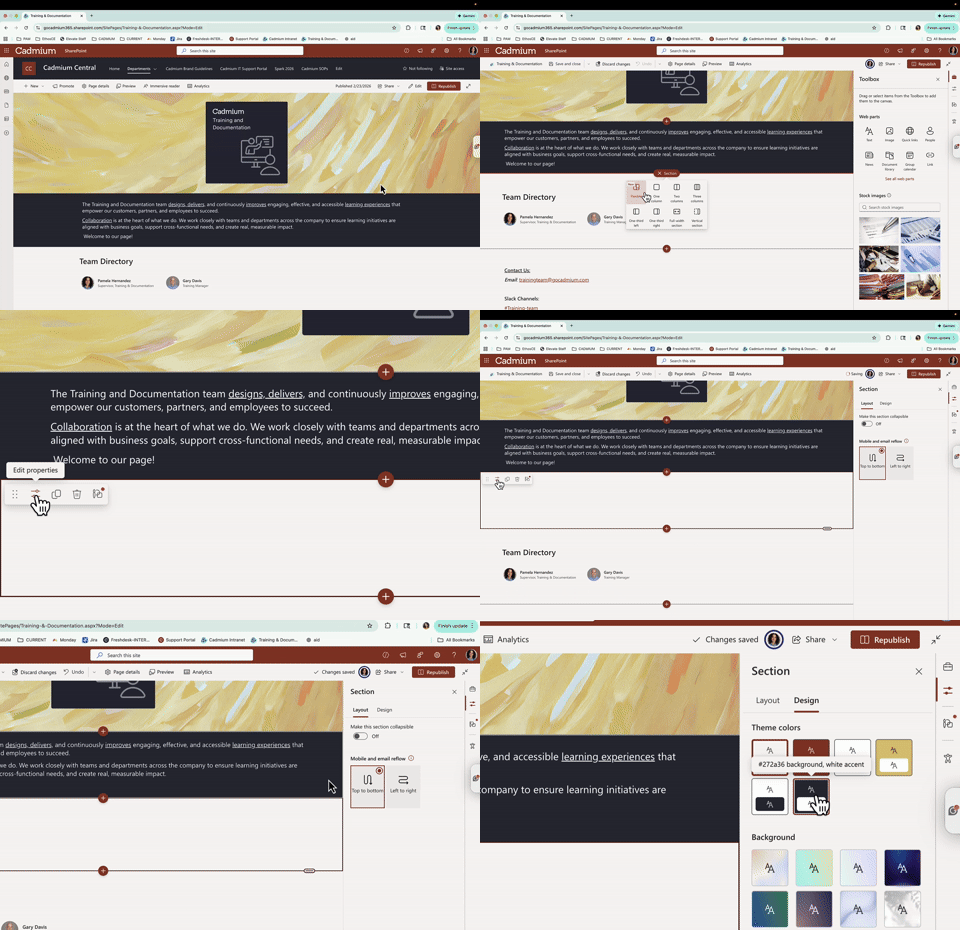
- Keep the majority of your content on a white background.
- Use the charcoal background sparingly.
- Charcoal should be used only as an accent.
- Use it to emphasize a break or highlight an important section.
- Consistency in design keeps the intranet clean, professional, and easy to read.
The Cadmium intranet is designed to serve as a centralized internal employee hub for your team and the broader organization.
Each team page should:
- Serve as a primary home base for team resources.
- Reduce the need for employees to bookmark multiple internal tools and pages.
- Provide clear access to commonly used platforms, documents, and references.
- Offer useful information for team members and other internal employees who may need to interact with your team.
Your page should function as a gateway — from your intranet page, internal employees should be able to easily find information and resources or navigate to other sites or tools.
NOTE
Ensure the “About Our Team” section is updated. Employees outside your team will visit your page to understand what your team does and how to work with you.
Editing & Page Ownership Rules
Only Edit Authorized Pages
- Only edit your own team or department page.
- Do not edit another department’s page.
- Do not edit the homepage.
- The only additional page you may update (outside of your team page) is the Cadmium SOP page.
If content on another team’s page needs updating, contact that team’s page owner.
SOP & Cadmium Page Guidelines
Use PDF Files for SOPs
- Upload SOPs as PDF documents to prevent unintended or accidental edits.
Avoid Duplicate SOPs
- Do not create duplicate versions of an SOP.
- When an SOP is updated, replace (swap out) the existing PDF with the updated version.
- Maintain one current, accurate version of each SOP.
This ensures version control and prevents confusion.
SOP Ownership & Organization
- If your team creates an SOP, it should remain in your department’s SOP folder, as your team owns and maintains that document — even if the SOP is intended for another team to use.
- Other teams can access the SOP by navigating to your department’s folder on the SOP page or by using the intranet search bar to locate the document by title.
- It is recommended to include a simple statement within the SOP that clearly identifies the intended audience.
- Example: “This SOP is intended for…”
Page Structure & Layout Standards
Use Clear Section Headers
- Add section headers or titles throughout your page.
- Organize content logically so users can quickly scan and navigate.
Clear structure improves usability for both your team and other departments.
Background & Design Consistency
Quick Links Web Part Standards
Quick Links are strongly recommended for frequently used resources and commonly visited pages.
When to Use Quick Links
- External systems (Jira, Confluence, Monday, etc.)
- Frequently accessed documents
- Shared internal tools
- Cross-team resources
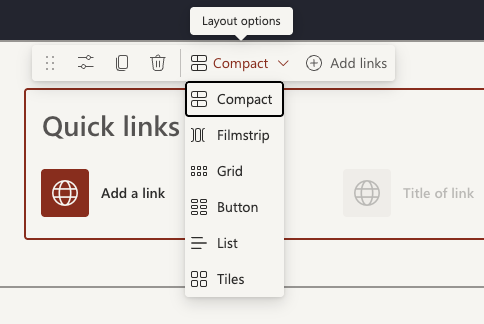
Layout Recommendations
- Use the Grid layout or Compact layout options.
- Avoid overcomplicating layouts for consistency across pages.
Link Settings
- Enable “Open link in new tab.”
- Use a custom title if needed to make the link clearer.
- Add a custom image thumbnail for each link whenever possible.
- Custom thumbnails help users quickly visualize where the link leads.
- This improves speed of navigation and overall user experience.
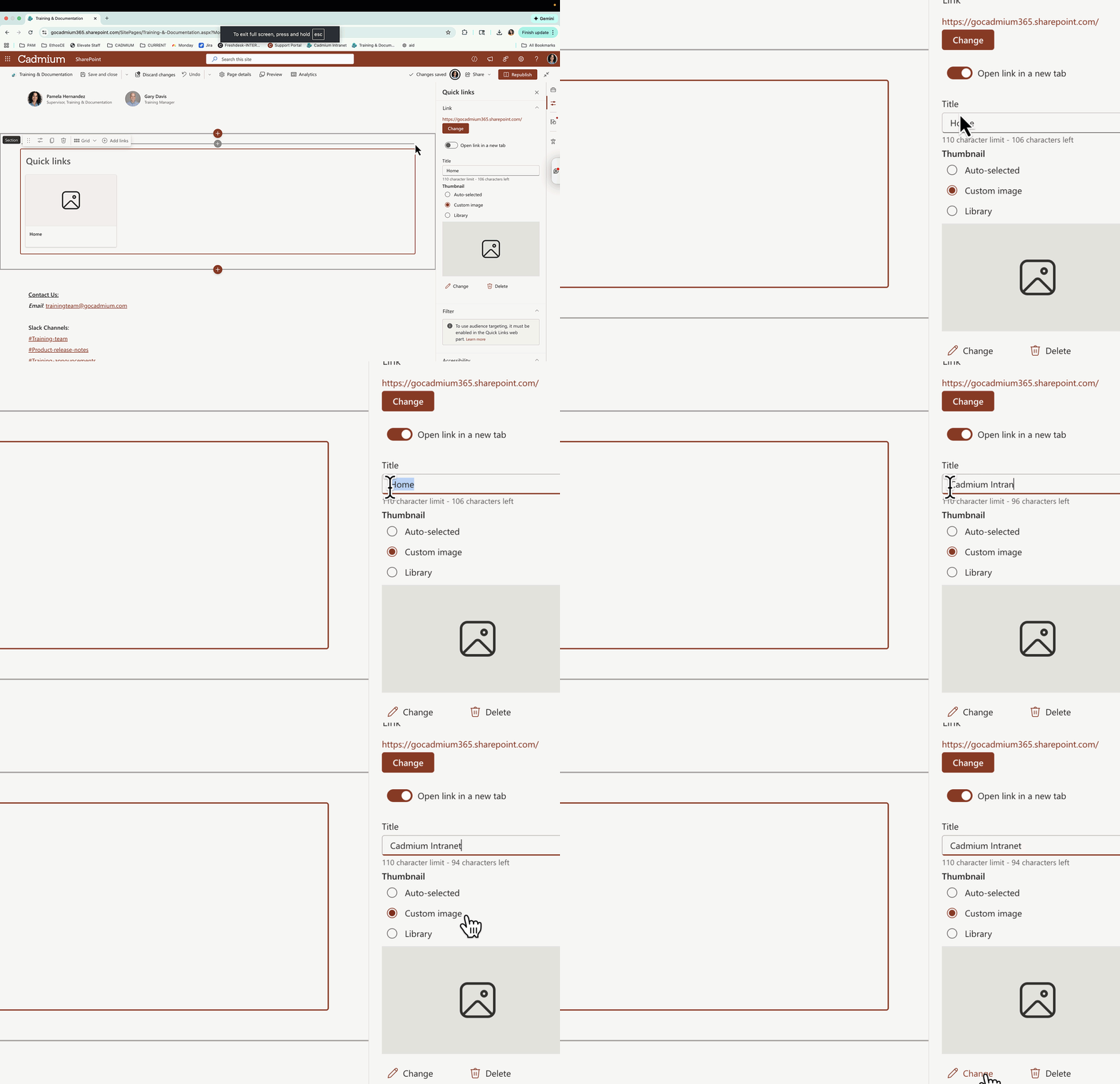
Editing Your Team Page & Adding Quick Links
This video walks through how to edit your SharePoint intranet page, including how to add sections and use the Quick Links web part.
Content Strategy & Best Practices
Your intranet page is not just for your team members. It should:
- Provide clarity for other internal staff
- Offer quick access to resources others may need
Reduce Bookmark Dependency
We want to minimize the need for teams to bookmark multiple tools or internal links. Your intranet page should:
- Centralize resources
- Host key links in one place
- Act as the primary starting point for internal navigation
If someone asks, “Where can I find this?” — the answer should ideally be: the intranet.
Last modified Feb 24, 2026
Was this article helpful?
That’s Great!
Thank you for your feedback
Sorry! We couldn't be helpful
Thank you for your feedback
Feedback sent
We appreciate your effort and will try to fix the article